Now I See Why the WordPress Image Align Feature Was Not Working


There is one WordPress feature that was introduced with version 2.5 that always made me curious: the image alignment feature of the “Add media” editor. Why? Because it never worked!
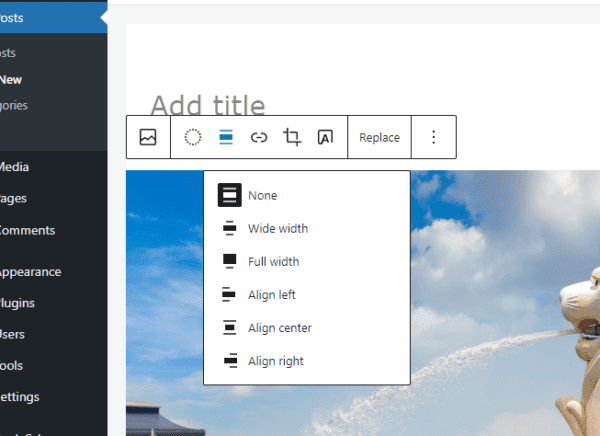
I knew that I was probably doing something wrong, but since I didn’t have time to find it out, I just kept choosing “none” as the alignment, and then I would manually insert the right, left or center alignment attribute on the image tag.

Then last week when I was submitting one of my themes for the WordPress Themes Directory I got a message saying that since version 2.5 WordPress themes were required to have the following code on their stylesheet:

img.centered {
display: block;
margin-left: auto;
margin-right: auto;
}

img.alignright {
padding: 4px;
margin: 0 0 2px 7px;
display: inline;
}

img.alignleft {
padding: 4px;
margin: 0 7px 2px 0;
display: inline;
}

.alignright {
float: right;
}

.alignleft {
float: left;
}

Duh! That is why the alignment feature was not working on my blogs, I never added that code! Now if you faced this problem in the past, now you know how to solve it.

Sign-up To The Newsletter And Get A Free eBook


  • Sign-up to the Daily Blog Tips newsletter and you will be able to download the "Make Money Blogging" eBook for free (worth $47).
  • You will also receive tips to improve your blog, strategies to make money and useful resources from around the web.

78 Responses to “Now I See Why the WordPress Image Align Feature Was Not Working”

  1. XIII on August 13, 2008 8:26 am

    Big doh moment, thanks for the tip. Me thinks WordPress themes seem to have a hard time keeping up with new WordPress features.

  2. David Lau on August 13, 2008 8:35 am

    Thanks, i got the same headache problem,and now it’s working~

  3. Arjen on August 13, 2008 9:34 am

    Thanks! I’m going to add these code to my theme.. have been wondering why it wasn’t working!

  4. Stephen on August 13, 2008 9:49 am

    I better go check my theme’s stylesheet. Mahalo for the info.

  5. DjFlush on August 13, 2008 10:12 am

    lol and I kept thinking this was a problem with my blog only. Thanks Daniel! It works

  6. Dean Saliba on August 13, 2008 10:39 am

    I had this same problem, thank you for the solution.

  7. stetoscope on August 13, 2008 11:07 am

    GREAT, I HAD THIS PROBLEM TOO.
    THANK YOU VERY MUCH

    (DO YOU HOW TO WRITE WITHOUT CAPS ;-) ))

  8. Ellie on August 13, 2008 11:32 am

    Thanks so much, that was an annoying problem.

  9. Todd Andrews on August 13, 2008 12:02 pm

    Wow, I’ve been coding a work-around for this for a while now. They need to make this standard with all WP themes someday

  10. Brad Blogging.com - Personal Blog Tips And Blog Help on August 13, 2008 1:10 pm

    It was so annoying adding an “float:left;” to each one of my pictures.

    Thanks for the code!

  11. Annie on August 13, 2008 3:27 pm

    AHA! That’s the problem! Thanks for sharing the proper code. Now, where exactly do I put it? I’m just beginning to learn about this stuff . . .

    Thanks!

    ~ AA

  12. Rick on August 13, 2008 4:56 pm

    I actually caught this myself. I always compare the latest default theme with the previous one. That way I catch any theme updates I need to propagate to my theme (which is based on the default).

  13. Allyn on August 13, 2008 5:28 pm

    OK, so I am the only one who does not know where in the stylesheet to put that code.
    does it matter where you put it?
    help!
    thanks,
    AL

  14. Hillary on August 13, 2008 7:22 pm

    Oh man!!! Thanks for sharing this, what a time-saver.

    Like you, I’ve been aligning my images manually. Lol!

  15. Ari on August 14, 2008 12:22 am

    Thank you Daniel, it really helps.
    @ Annie, you need to put the code at stylesheet file of your theme on the content section.

  16. Michelle on August 14, 2008 4:31 am

    Daniel, you’re an absolute star. I’ve been struggling with this issue for months!

  17. David Hutchison on August 14, 2008 4:34 am

    Thank you! There doesn’t seem to be a blogging question that can’t be answered by our supportive community – quietly working alone at home, yet I don’t feel isolated.

  18. EL Locco on August 14, 2008 4:59 am

    Yach, really I like this article. Thanks for this nice article :D

  19. parisb on August 14, 2008 5:14 am

    I’m wondering where to place this too? I’m using the passionduo theme and the images aren’t aligning. Thanks for any help.

  20. Daniel Scocco on August 14, 2008 8:24 am

    @Parisb, open WordPress CP, then Design, then Theme Editor, then open style.css file. Place it there.

  21. pandu on August 14, 2008 11:00 am

    oh…gosh, i always find difficulties when aligning image on my blog. you’re really ‘the daily blog tipper’, man…muchos gracias!

  22. parisb on August 14, 2008 11:04 am

    @Daniel: Thanks. I did try that immediately when I saw this tip. It still isn’t working though. Is there a specific part of the stylesheet it should go into? I’m still aligning my images manually :(

  23. BloggerNewbie on August 14, 2008 11:34 am

    Well No duh here cause it’s all news to me, except the part that the alignment never worked, too much of a newbie to even begin to know how to work on it. I’ll check it out and report back on my success (positive thinker) :)

  24. Melodee Patterson on August 14, 2008 11:53 am

    I hate to say all those hours I spent figuring out how to align my graphics were a waste, but, doh!

    Thanks!

  25. Jodith on August 14, 2008 6:35 pm

    *nods* I just had to have that fight with my theme last week (when I finally updated to 2.6 from 2.3.1). Drove me crazy getting it figured out, but I finally got it in there and can now float my text around my images.

    And there was much rejoicing!

  26. خسروبیگی on August 16, 2008 6:57 am

    Hello

    Thanks for your solution. I had this problem too and your post help me.

    Regards

  27. Coder on August 16, 2008 9:08 pm

    I never had this problem..
    Don’t know why?! LOL

  28. BloggerNewbie on August 18, 2008 7:48 am

    Daniel:

    worked! (no surprise) Saved a ton of work! Sometimes I use scribefire which lets you position graphics a little better. It has it’s benefits and drawbacks.

    Thanks. Always helpful.

  29. Schrottpresse on September 5, 2008 4:35 pm

    Thank you very much for this solution, I really was confused with all of the align functions on the button bar, none of them working ^^

  30. Beno on September 8, 2008 5:31 am

    I was doing a Google search trying to find out why WordPress wasn’t doing the right thing by default and I came across this post.

    Thank you for sharing.

  31. Kristen on September 8, 2008 7:21 pm

    OH THANK YOU! I have been so frustrated with this topic and just adding that code to my stylesheet automatically fixed my images.

    THANK YOU THANK YOU THANK YOU

  32. BloggerNewbie on September 9, 2008 10:45 am

    Daniel:

    big help! got any clues on the post at a future date feature? When I set a future date, the post goes out into never never land not to be seen ever again!

  33. Avigail on September 13, 2008 7:01 am

    Hello,

    thank you for sharing. It works without any problems. I was driving me mad I thought that I can just use new wp themes, but just pasting the code into the stylesheet works!

    Avigail

  34. Saeed on September 25, 2008 12:56 am

    I have used this code to align my images perfectly on my blog. However, in the RSS feed reader, e.g. Google Reader, they still don’t float properly. Has anyone else been having the same problem as well? If so, were you able to rectify it? Please share kindly!

  35. Tobias Goth on September 27, 2008 12:21 pm

    Big Thanks! I was starting to think that my version of WordPress was bust, but you made me think other wise.

  36. Dusibello on October 2, 2008 1:00 am

    No joy here.

    Does the code need to be pasted into a certain section of the stylesheet file?

  37. Susan on October 2, 2008 9:46 am

    thank you!

  38. Andy on October 8, 2008 4:45 am

    Fantastic! I thought I was going mad after the upgrade to 2.6 on my blog none of the image alignment worked for new images in posts.
    You have saved me bacon. Cheers!

  39. Stefan Wurz on October 12, 2008 6:29 am

    Yeah, really I like this article. Thanks for this nice article

  40. Sebastien Page on October 28, 2008 3:14 am

    Thank you for saving me a time. It’s been driving me nuts for an hour until I came across this post! Thanks

  41. Tim on November 1, 2008 1:50 am

    THANK YOU SO MUCH FOR THIS.

    This was driving me insane.

  42. Clone High on January 9, 2009 4:20 am

    Thanks a ton, this is a life saver!

  43. Peter Butler on January 10, 2009 6:38 am

    Gee, I would ahve thought the new big upgrade to 2.7 would have sorted this

  44. Peter on January 10, 2009 6:50 am

    OK, I don’t get it. Pasted the code in to the css file, updated, checked the images and set the second one to the right and – damn, still the same. What is it I’m missing here?

  45. Dusibello on January 11, 2009 12:00 am

    Style.css is a long, complicated file. This code presumably should go in a certain section?

    One of the posts above says to put in ‘on the content section’??

  46. David P on January 21, 2009 1:47 am

    May you live to be 1000 years old.

  47. gadget on January 25, 2009 8:09 am

    Thanks for the tip but upon checking, my code is exactly the same as that – but it’s not aligning correctly?!

  48. Tom on January 26, 2009 7:26 pm

    Brilliant, thankyou so much!

  49. Mohit on February 15, 2009 12:21 pm

    Where to place that code in blog stylesheet?

  50. Netbooks on February 23, 2009 6:03 pm

    Also having the same issue…I have that code but it is not aligning

  51. Borino on March 2, 2009 10:44 pm

    Excellent. Thanks for the quick and simple fix.

  52. Rodrigo on March 9, 2009 1:39 am

    Very simple and powerfull, thanks!
    I was getting mad with the image alignment!

  53. Netbooks RUS on March 17, 2009 10:37 am

    I just can not get the silly thing to align. There must be some other code we can use.

  54. Dave Haygarth on March 25, 2009 9:58 am

    Oh I’ve been looking for this answer for AGES!!! I love you !!!

  55. Mark on April 12, 2009 8:07 pm

    Thanks a lot.. You saved me some frustration..

  56. Cecil on April 14, 2009 10:48 pm

    Sorry, doesn’t work for me. Must be something wrong with something else in my code if it’s working for everyone else.

  57. Mark on April 20, 2009 1:22 pm

    Thanks for the fix! I was searching for why my image align wasn’t working and hit this post. Works perfectly.

  58. Mark on May 15, 2009 3:26 am

    TO ALL WHO CAN’T GET IT TO WORK:

    I bypassed the stylesheet (i.e. style.css) altogether and pasted the above code into my index.php file, right before the closing tag.

    Works now. Try that.

  59. Jillian on June 7, 2009 1:13 am

    I’ve been working on a theme in editor for a while. It’s still not working for me.

  60. Pieter on June 7, 2009 2:07 pm

    Thanks! Copied and pasted in the stylesheet and its working like a charm!

  61. Tom on July 18, 2009 9:36 pm

    Geez. I wanted to drop another “thanks” your way. I missed this too, and it’s gone on for quite some time!

  62. Corinne on August 9, 2009 6:46 pm

    THANK YOU! This post is still relevant and helpful – alot of old themes floating around out there that arent updated. Thank you, thank you – and again THANK YOU!

  63. Kevin on August 23, 2009 8:52 am

    Hi,

    This didn’t work for me, but I managed to fix it. I noticed when trying to center pictures it never worked, it kept trying to use the tag ‘aligncenter’ so I just added this to all the code provided here and put it in the style.css, and it worked. Give it a shot.

    .aligncenter {
    display: block;
    margin-left: auto;
    margin-right: auto;
    }

  64. TiagoFrossard on August 23, 2009 11:40 am

    I’m not used to build up wordpress themes, just using the ones shared in the internet and, I must admit, this alignment problem messed with my layout for more than a yr. Thank you for helpin’ me solving this issue!

  65. Rachel Rush on November 10, 2009 12:20 am

    I can’t begin to tell you how many times I have referenced this entry of yours. Thanks for this helpful information. I manage a lot of blogs and every now and then I’ll notice that one of them, usually and older one with an older theme, needs this bit of code in the stylesheet.css. Thanks!

  66. Kiley on November 15, 2009 2:34 am

    Worked like a charm! Thanks, Daniel!

  67. Aaron on January 2, 2010 7:31 pm

    I’m glad I found you guys. I’m having a big alignment problem that I’m hoping you can help me out with. What I’m trying to do shouldn’t be hard, but has been.

    On my page, I am trying to put a picture on the left, then writing to the RIGHT of it. I want about 9 pictures justified to the left with writing next to everyone. However, it keeps looking like this.

    http://theblankpress.com/blog/every-dog-needs-a-home

    As you can see, it doesn’t justify to the left. I try hitting RETURN, and it looks correct in my editor, but when I press “UPDATE POST”, it gets rid of those hard returns and screws it all up.

    I’m pretty sure I’m doing everything writing. Putting my cursor where I want the picture, then adding an image, and selecting “Align Left” or clicking on the “Align Left” button. Please help? What am I doing wrong?

    Thanks in advance.

  68. Hayley on March 22, 2010 1:20 pm

    Thanks you so much to Daniel and Kevin in comment 63, my alignment is FINALLY working thanks to both of your tips, phew!!

  69. Jason on March 31, 2010 7:40 pm

    Yes, it does work! And yes you have to search thru your stylesheet for something to do with content mine said “/* Primary Content Area */” (without the quotes) I just pasted as is, and crossed my fingers, and hit refresh on my post, and done!

  70. Dave Higgs on April 8, 2010 6:53 pm

    Thank you, thank you, thank you!

    I too ran into the same problems – Images not going left and no time to worry about it :)

    You are a life saver – thank you for not only finding the solution, but making the effort to share it!

    D

  71. rickyspires on April 9, 2010 4:37 am

    hello. great tip but not working for me.

    i put the code into my styles but no change . to i need to add more code in another place?

    i even tried different variations:
    /* WP image align classes */

    img.centered {
    display: block;
    margin-left: auto;
    margin-right: auto;
    }
    img.alignright {
    padding: 4px;
    margin: 0 0 2px 7px;
    display: inline;
    }
    img.alignleft {
    padding: 4px;
    margin: 0 7px 2px 0;
    display: inline;
    }
    .alignright {
    float: right;
    }
    .alignleft {
    float: left;
    }

    .aligncenter {
    display: block;
    margin-left: auto;
    margin-right: auto;
    }

    .centered {
    display: block;
    margin-left: auto;
    margin-right: auto;
    }

    .aligncentered {
    display: block;
    margin-left: auto;
    margin-right: auto;
    }
    .alignright {
    padding: 4px;
    margin: 0 0 2px 7px;
    display: inline;
    }
    .alignleft {
    padding: 4px;
    margin: 0 7px 2px 0;
    display: inline;
    }
    .alignright {
    float: right;
    }
    .alignleft {
    float: left;
    }

    :(

  72. Jason on June 1, 2010 12:28 am

    To answer something that got me, some templates may you check YES use stylesheet or custom style sheet if that is where you are putting the info. I was putting in the custom.css but it was not “on”. Other templates I just can not fix with this, not sure why..

Sponsors

Advertise Here Start Making Money Online in 12 Weeks! Get A Keyword Research Report Backlink Build Link Building Services Pay Only When You Rank - RankPay Flex Theme for WordPress

Popular Articles